Naviance
Naviance: An Online College and Career Planning Tool
New! Sept. 2026 SPS transitions to SchooLinks, a new HSBP platform
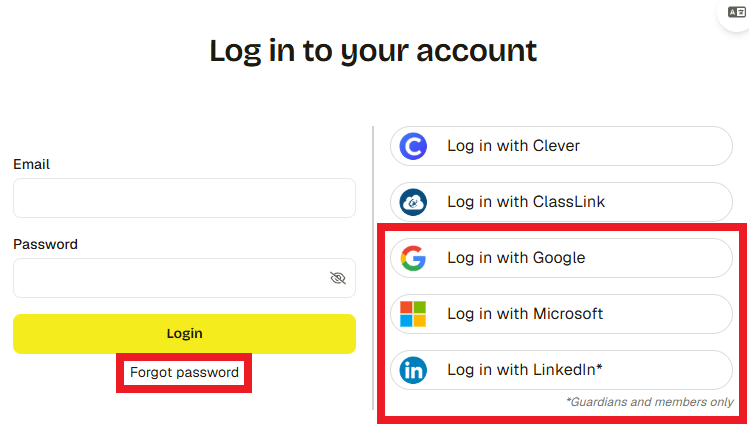
Beginning in September 2026, our district will transition from Naviance to SchooLinks, the state-selected HSBP platform for Washington schools. This shift ensures alignment with state requirements while providing improved tools for students to explore their interests, plan for life after high school, and track progress toward their goals. SchooLinks also expands access for families, creating new opportunities to engage in their student’s planning process. More information, including access details and training resources, will be shared ahead of the launch. Visit the district SchooLinks page for more updates.
High School & Beyond Plan Requirements 2025-26
There are four main tasks Seniors must complete in order to have MET the High School & Beyond graduation requirements on Naviance.
Seniors Required 4 Steps on Naviance
Students log onto Clever and select the green Naviance icon. Learn more about Naviance.
Four Main Tasks 2025-26
- Complete an Interest Inventory | Most Seniors have this completed | Complete either “Do What You Are” or “Strengths Explorer”
- Create OR upload a Resume | Most Seniors still need to complete this step | Create a Resume in Naviance using their template or upload your own using directions on the Counseling Schoology page.
- Apply for Scholarships OR complete the High School & Beyond Plan: My Life, My Decision-Costs Exit Ticket. If you applied for the Seattle Promise, you can list this as a scholarship in the “Apply for Scholarships” task
- Complete a SPS Graduation Survey | All Seniors will take this survey | The survey is available in June. All students must complete this survey regardless of their post high school plans. This survey is also how the school knows where to send transcripts to colleges.
Seniors! Be sure to set your “Attending College”, and select the “order final transcript” button.
After competing all four steps, BHS Counselors will change senior transcripts to MET for the High School and Beyond Plan. Let your BHS Counselors know if you have any questions at all!
Please note: Some BHS Seniors have already MET the HS and Beyond requirement on the SPS transcript. However, all students should also follow these steps to complete these tasks through Naviance.
Note: More detailed instructions on each of the below steps can be found on student’s BHS School Counselor Schoology page.
Naviance Scholarship Listing
Seniors in addition to the Ballard HS posted Scholarship Opportunities be sure to view the Scholarships listed on Naviance currently with over 200 + listings.
How to Access Naviance
Students log into Naviance through the SPS Student Portal (not the Source). The student portal and Naviance can be accessed both at school and from home.
Each student must know their district username and password to access the student portal. Students can contact any teacher or librarian for assistance with their district username and password.
On the Seattle Public Schools login page, enter your student username followed by @seattleschools.org, your password, and Sign in. Example username: 1username@seattleschools.org
Learn more about Naviance on the Seattle Public Schools High School and Beyond Plan and Naviance page.
Grade Level Tasks For All Grades & Parents
Naviance, the district’s online college and career planning tool, offers accounts for parents and guardians of SPS students who use the tool. Parent/guardian access is view-only and gives parents/guardians the ability to add colleges to their student’s prospective college list.
Family Benefits
- Research career and college possibilities with your student
- Help your student take ownership of college and career planning process
- Help your student examine their strengths, interests and goals
- Explore financial options for college including scholarship search and financial aid information
- Stay up-to-date on time sensitive dates
Note: Having a valid user account for the Source, the district’s parent portal, is a prerequisite to obtaining a Naviance parent guardian user account. Read about parent and guardian access.
All Grade Level Tasks Overview
- Grade 9: Complete the Strengths Explorer, Create an Academic Resume, and Review and Update Course Plan
- Grade 10: Complete the Do What You Do Assessment, Update your Academic Resume to reflect additional activities such as sports, volunteer work, or other achievements, and Review and Update Course Plan
- Grade 11: Complete the SuperMatch College Search, Add 2 (or more!) colleges to your Favorites List. Verify or update your Academic Resume to reflect additional activities such as sports, volunteer work, or other achievements. Review and Update Course Plan and look over and Sign Up for College Visits on the College Profiles and College Events.
- Grade 12: Complete any remaining High School and Beyond Plan tasks, Complete an Interest Inventory, Create or Upload Resume, Complete a Graduation Survey.
Juniors! Explore Naviance College Options
Naviance is a great resource for exploring college options. They have just added “Show Me How” which provides self-service instructional tours in Naviance designed to help students quickly understand college research features as they continue their college planning process while at home.
“College Profiles and College Events” have new features including the ability to easily locate virtual events and quickly access links to virtual tours so students can continue their college research activities. Students can also sign up for College Visits directly on Naviance as well!
You can access Naviance through the Student Portal (not the Source).
Resource Links for All Grades
- Access Naviance at Home | Instructions on how to access Naviance when not at school. When on the Naviance screen select the My Planner drop down tab and Tasks to view the “Tasks Assigned to Me” section.
- How Students Access Naviance
- How Students Access Naviance When Not At School
- Instructions on how to access Naviance when students are not at school. When you are on your Naviance screen select the My Planner drop down tab and Tasks to view the “Tasks Assigned to Me” section.
- Resume Building – Create a Resume
- Instructions on how to create and build a resume in Naviance.
- Request Transcripts on Naviance
- SPS Naviance: An Online College and Career Planning Tool Overview
As of June 1, 2026