

Senior Portrait and Grad Ads & Yearbook Info & Instructions
Senior Portraits & Grad Ads 26-27
Rowland Studio Mini Senior Sessions Option
Date: October 9. View times online.
During your mini-senior session with Rowland Studio, seniors will spend 20 minutes outside, capturing a variety of poses around the Ballard campus. The mini-senior sessions are $40 each, due at the time of scheduling. The photos will be uploaded to our ordering site for viewing and purchasing if desired. Included, we will submit the image that you choose to the BHS Yearbook staff for the yearbook Senior Portrait as well.
All Students Can Choose Their Yearbook Photo
All students Grades 9-12 (Seniors also can alternately submit a Senior Portrait) can choose the photo they would like in the Yearbook from the photos that were taken on the Picture Days. You must select your photo online by Oct. 25, 2026.
- Visit Rowland Studio’s website to access and view your school photos.
- You’ll need your Access Code, so go to Photo Access Codes if you need to look it up.
- Select Order Online and enter your access code.
- Select your photo
- In the Yearbook photo selection box, click Change photo.
- Choose your favorite and select Confirm Selection.
Senior Portraits (if interested) Due Nov. 12
Ballard Seniors have the option to submit their own photo for the yearbook. If a different photo is not submitted, the School ID photo taken at the beginning of the school year will be used.
Submit Senior Photo Online with Walsworth |
General Photo Requirements
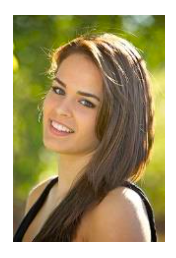
Your Senior Portrait needs to meet the requirements below.
- No props, other people, pets, etc. Only fully clothed student in the picture.
- Photos should be a vertical (portrait), head and shoulders, not full body.
- Images need to be high-quality jpg files.
- Dimensions should not be lower than 900 x 600 pixels at 300 PPI
Yearbook photos are legal photos (can be used to get a driver’s license, passport, etc.) so it must show a closeup of your face/head/shoulder!
Instructions: Submit Portrait on Website or App
Submitting Senior Portrait on Website
- Visit Yearbook Snap and search for Ballard High School
- Enter the code: gobeavs (case sensitive) & select your images
- Enter Photo Topic as ‘Senior Photos’
- Or check Senior Photos box, and Click Save
- Rename the jpg/image (photo file) to student’s name
- Enter the name and grade of student in photo notes
- Enter your information, then submit
- Do not close out of Snap until image is fully uploaded
OR
Submitting Senior Portrait on the App
- Download Yearbook SNAP! Google Play / Apple Store
- Search for Ballard High School & Enter: gobeavs (case sensitive)
- Select topic ‘Senior Portraits’
- Rename the jpg/image (photo file) to student’s name
- Upload Image, Click on the Image
- Enter the name and grade of student
- Enter your info and submit
- Do not close out of Snap App until image is fully uploaded
- You’ll receive a confirmation email once complete
Senior Portrait Upload Questions?
If submitted properly, you will receive a confirmation email. Contact us at ballardshingle26@gmail.com with questions on ads. For any technical questions related to your submissions contact the School Store at 1-877-723-6344 or help@walsworth.com
Senior Grad Ad (if interested) Due Nov. 30

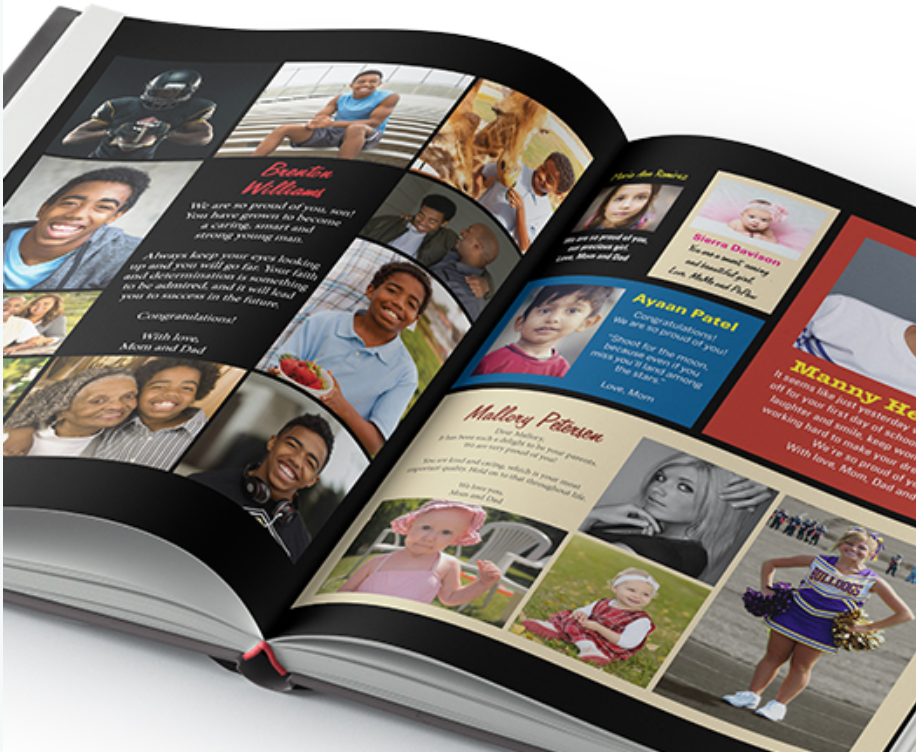
Grad Ads are an opportunity for families to submit photos and a personal message for graduating seniors to be printed in the Shingle Ballard HS Yearbook. The Ads include photos of your choice and a personalized message of your choice for your graduating student. Order a beautiful Grad Ad to congratulate your student’s accomplishments!
If you have any more problems with the website or anything else, don’t hesitate to send us a message. Thanks, The Ballard Shingle Team; ballardshingle26@gmail.com
Submit Your Grad Ad Instructions
Purchase a Personal Ad (Grad Ad) on Yearbook Forever
- Visit Yearbook Forever and search for Ballard High School
- Select “Get Started” on the Create a Personal Ad section
- Enter the information for your student
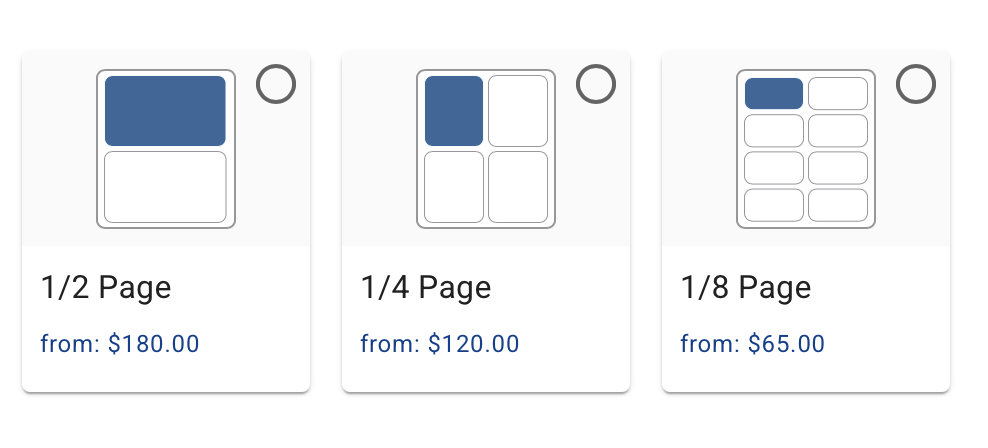
- Choose your Grad Ad size and cost (half, quarter and eighth page)
- Enter the text for your Grad Ad & Upload your photo, choose ‘certify ads and photos’
- Checkout and Pay for your Grad Ad and then submit
- The school will design your ad for you
Grad Ad Upload Questions?
If submitted properly, you will receive a confirmation email. Contact us at ballardshingle26@gmail.com with questions on ads. For any technical questions related to your submissions contact the School Store at 877-723-6344 or help@walsworth.com
Ballard HS Yearbook | The Shingle
Yearbook sales dates are established in accordance with state tax policies. No yearbook sales between Spring Break (April) and Beaver Day (June) TBD. Yearbooks purchased during the pre-sale will be distributed at a Senior Dinner, and Beaver Day. Yearbook sales resume following Beaver Day and continue until books are sold out.
The Shingle Yearbook Sales Window
- 9/2/26 – 9/22/26: CLOSED
- First Yearbook Pre-Sale Closed: $65.00. Place order by 10 p.m
- 11.22/26 – 12/12/26:2nd Yearbook Pre-Sales Window
- Yearbook Pre-Sale: $70.00. Place order by 10 p.m.
- 2/11/27 – 3/3/27: 3rd Yearbook Pre-Sale Window
- Yearbook Pre-Sale: $75.00. Place order by 10 p.m.
Note! Don’t miss out! After the last Pre-Sale Window, students can no longer pre-order a yearbook, and can only then buy a book ($80.00) after June distribution, if any books remain. Parents! Pre-ordering helps the students know how many books to order and not run out at the end of the school year.
Payment Options
- Pay Online: via Parent/Guardians Source/SchoolPay
- Yearbooks will also be sold in the main/fiscal office before school or during lunch and after school with cash, check or Debit/Credit Card to avoid the transaction fee.
- Cash, Check (Ballard High School), Debit, Credit Card
Yearbook sales dates are established in accordance with state tax policies.
Ballard HS Yearbook Contact: ballardshingle26@gmail.com as well as BHS Yearbook Advisor: mtsmith@seattleschools.org
SchoolPay Tips to See if You Pre-Purchased a Yearbook!
The SchoolPay purchase history below works if you purchased a yearbook using the SchoolPay option from the Source during the original sales windows.
- Log onto the Parent/GuardianSource/SchoolPay
- Verify that you are viewing the correct student account.
- If the Yearbook option is not displayed in SchoolPay, check your payment history to see if it has already been purchased:
- Open the History menu in the upper right.
- Select Items Purchased. SchoolPay will provide a search menu.
- Select the date range and student, and click the Search button.
As of October 2, 2026